Sprite Mode: Multiple
Set Texture Type to Sprite (2D and UI), use Multiple mode, and choose Point filtering for crisp pixel art.
Unity 2D workflow
Create a consistent sprite sheet, then use a predictable grid layout to slice frames and build a Unity 2D animation clip.
Keep Unity slicing predictable
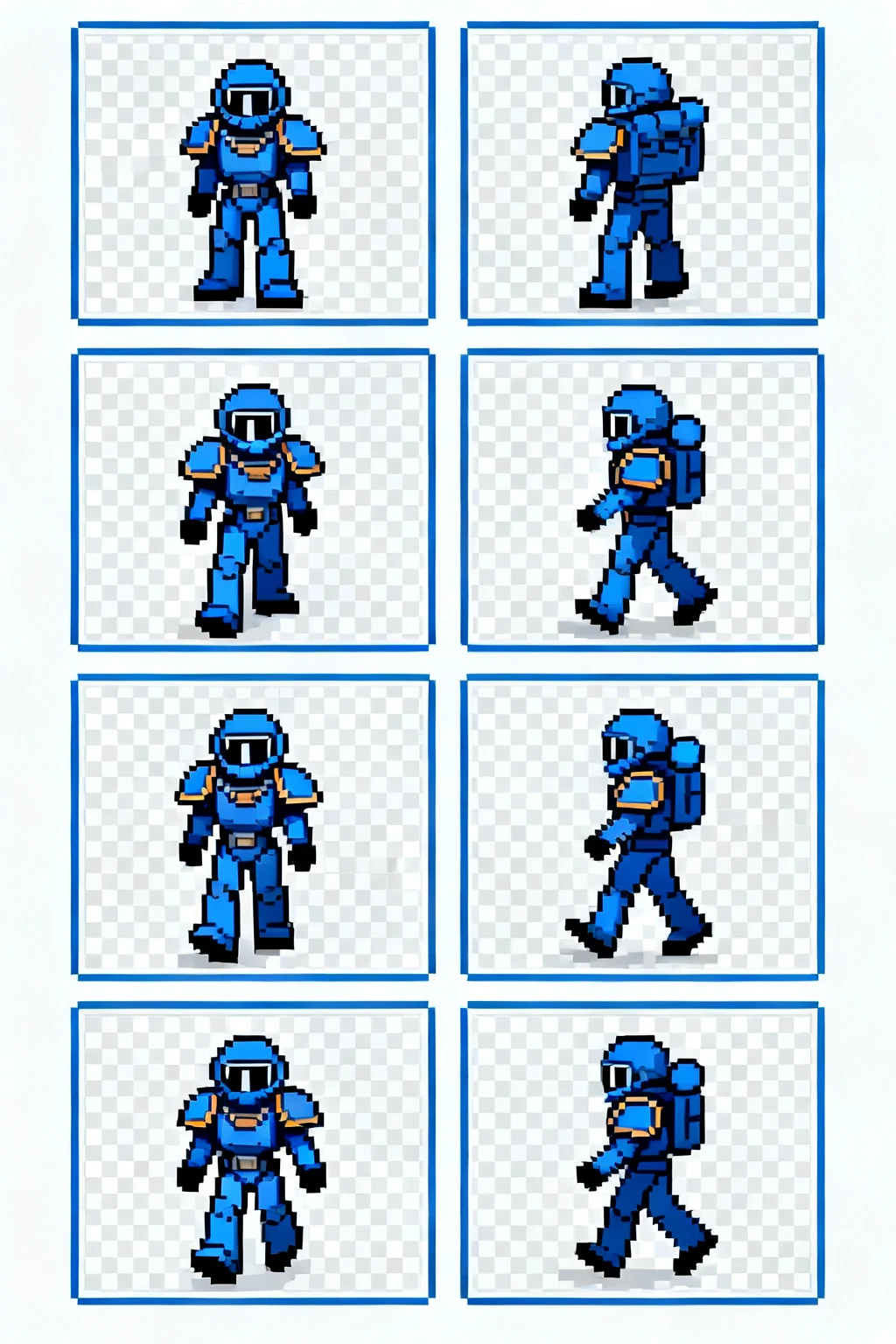
Fixed canvas dimensions and aligned frames make Sprite Editor slicing much faster and reduce cleanup work.
Set Texture Type to Sprite (2D and UI), use Multiple mode, and choose Point filtering for crisp pixel art.
In Sprite Editor, use Grid by Cell Size with the exact frame width, height, spacing, and margin.
Apply one pivot coordinate to every frame, create the Animation Clip, and enable Loop Time for cycles.
Built for production-minded game makers
A practical workflow
Pick an action, direction, and art direction that match the character you want to animate.
Generate or refine the sheet, then inspect the grid for readable silhouettes and consistent timing.
Export the frames and follow your engine's sprite import settings for slicing and playback.
Start with the smallest loop that communicates the action. A readable walk can be short; attacks often need anticipation and recovery frames.
Yes. A consistent frame size and aligned character origin make slicing and collision setup much simpler in a game engine.
Check frame order, transparent background needs, grid dimensions, and whether the animation reads at your game's target size.